Employer inspection example
An observation, a reviewed finding, an open action.
Follow the inspection workstream. The reviewed finding and the corrective action are different objects; the next owner still has work to do.
How it works
From the field to the record, with a person deciding at every step.
One Site Scan finding, start to finish, in the real interface with synthetic data. The software suggests; a supervisor decides; the decision becomes tracked work with its evidence.
Production AI generation is currently held. A trial, a price, or a description does not turn it on. Supported non-AI evaluation and fictional examples remain available only where a page provides them. Manual recordkeeping and other non-AI work are not disabled. Do not send workplace records expecting an AI answer.

01 · Input
A photo from the site walk
A supervisor photographs the work area during a walk. Up to 10 photos per scan; supported screens keep working without a connection and sync when you reconnect.
- Marker A: The open front edge of the platform: no top rail, mid rail or toeboard.

02 · Suggestion
A suggested finding, with its standard
SafeGora suggests a finding with the standard it relates to. It stays pending until a person reviews it.
- Marker A: Severity, category and status. Pending means no one has decided yet.
- Marker B: The citation is checked before it is saved; an unverified citation is flagged, not hidden.
- Marker C: Confirm or dismiss: the supervisor's call.

03 · Decision
The supervisor decides
The supervisor confirms the finding on site, and the recommended action is selected to become tracked work.
- Marker A: Confirmed by the supervisor.
- Marker B: AI suggestions are advisory only; nothing is created without a person.
- Marker C: The recommended action, selected to become tracked work.

04 · Record
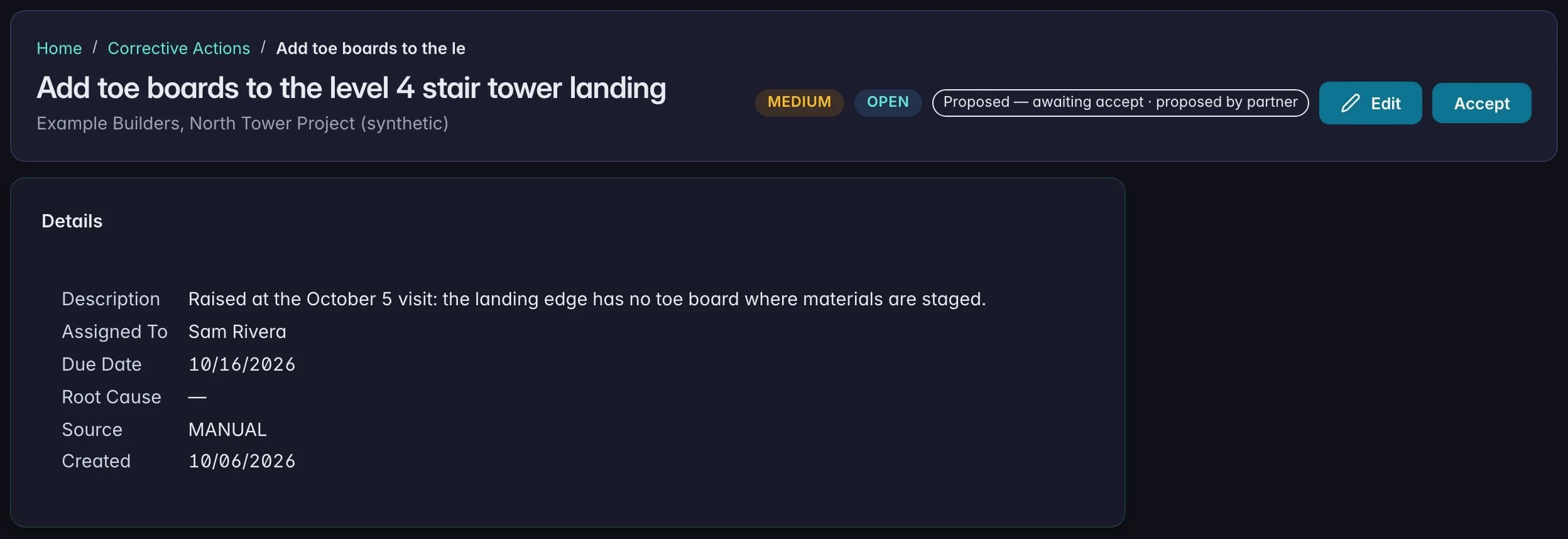
Finding reviewed. Action still open.
The finding has been processed and linked to a corrective action. The action remains Open: an owner must do the work and provide the required completion evidence and review.
- Marker A: RESOLVED describes the processed finding, not a repaired physical condition. The linked action remains Open.
- Marker B: The scan photo is linked to the action as evidence.
Read all steps
A photo from the site walk
A supervisor photographs the work area during a walk. Up to 10 photos per scan; supported screens keep working without a connection and sync when you reconnect.
The open front edge of the platform: no top rail, mid rail or toeboard.
A suggested finding, with its standard
SafeGora suggests a finding with the standard it relates to. It stays pending until a person reviews it.
Severity, category and status. Pending means no one has decided yet.
The citation is checked before it is saved; an unverified citation is flagged, not hidden.
Confirm or dismiss: the supervisor's call.
The supervisor decides
The supervisor confirms the finding on site, and the recommended action is selected to become tracked work.
Confirmed by the supervisor.
AI suggestions are advisory only; nothing is created without a person.
The recommended action, selected to become tracked work.
Finding reviewed. Action still open.
The finding has been processed and linked to a corrective action. The action remains Open: an owner must do the work and provide the required completion evidence and review.
RESOLVED describes the processed finding, not a repaired physical condition. The linked action remains Open.
The scan photo is linked to the action as evidence.
Illustrative: AI-generated photograph and the real SafeGora interface with synthetic data.
Read the full example
Four steps, with a person deciding.
Production AI generation is currently held. A trial, a price, or a description does not turn it on. Supported non-AI evaluation and fictional examples remain available only where a page provides them. Manual recordkeeping and other non-AI work are not disabled. Do not send workplace records expecting an AI answer.
Capture the observation
A supervisor captures a work-area photograph during an inspection. The image is evidence for review, not a completed safety decision.
Inspect the suggestion and source
SafeGora suggests a possible finding and relevant standard. A verified citation describes the source, not verification that a workplace is safe.
Review and decide
A person confirms or dismisses the suggestion and selects the supported next step. AI suggestions remain advisory.
Keep the corrective action open
The processed finding is linked to an action with an owner and next step. A finding labeled RESOLVED does not mean physical remediation: the action remains Open until work, evidence and required review are complete.
Incident facts and recordability are reviewed in a separate workflow. Explore the recordkeeping film and supported preparation steps.
For your workforce
Employer plans
$79 / month · Starter
5 full users on Starter. Pro is $249/month with 15 full users. Both include unlimited workers and sites.
30 day Pro trial · No card required. No charge unless you choose a paid plan.
Production AI generation is currently held. A trial, a price, or a description does not turn it on. Supported non-AI evaluation and fictional examples remain available only where a page provides them. Manual recordkeeping and other non-AI work are not disabled. Do not send workplace records expecting an AI answer.
Start your 30-day trialAnnual totals, extra users and trial terms →USD plus applicable tax. After an unpaid employer trial expires, access is read-only with authorized export.
Fictional example · not a live product capture
Inspect a fictional completed action record.
SYNTHETIC (FICTIONAL) EXAMPLE — not a live capture, customer record, signed review, filing or app-generated export.
This standalone, manually created action is not a continuation of the Site Scan finding above and does not show that finding completed. No jurisdiction-specific rule, injury report, insurer transmission or filing readiness is demonstrated.
All people, records, evidence notes and timestamps are authored fiction. Dates are not a turnaround promise. This example does not demonstrate a completed live workflow, an application-generated export or access to a client workspace.
AI unavailable / not used: this prepared example works without a model or an account. Source review: no regulatory citation is verified here. A citation check would not verify the physical correction.
Step 1 of 9 · fictional time
Record an observation
The fictional supervisor notes stored material in a marked access aisle. This written example is not a workplace photograph or an AI finding.
Responsible person: Supervisor (fictional). Action status: Not created.
Evidence at this step
No evidence notes yet.
Read all completion steps (no animation)
Record an observation
The fictional supervisor notes stored material in a marked access aisle. This written example is not a workplace photograph or an AI finding.
Fictional time: . Responsible person: Supervisor (fictional). Status: Not created.
No evidence notes yet.
Inspect a prepared suggestion
Prepared example text suggests clearing the aisle and checking the full route. No AI request runs here. No regulatory citation is verified or used as authority.
Fictional time: . Responsible person: Supervisor (fictional). Status: Not created.
No evidence notes yet.
A person creates an Open action
The supervisor decides to act, assigns the fictional owner and records a due date. Accepting a suggestion does not finish the physical work.
Fictional time: . Responsible person: Supervisor (fictional). Status: OPEN.
No evidence notes yet.
Work begins; evidence is added
The owner records work and a first evidence note. Attaching evidence is separate from marking the work Completed or having a reviewer check it.
Fictional time: . Responsible person: Action owner (fictional). Status: IN_PROGRESS.
- First work note: Fictional first note: material removed from the near end of the marked aisle. The far end was not documented.
The owner marks work Completed
Completed means the owner has submitted the work for review. It does not mean the reviewer has checked or accepted it.
Fictional time: . Responsible person: Action owner (fictional). Status: COMPLETED.
- First work note: Fictional first note: material removed from the near end of the marked aisle. The far end was not documented.
The reviewer requests a correction
The reviewer cannot confirm the full route is clear from the first note. The reviewer asks the owner to check the far end. In this fictional history, the action returns to In Progress while the owner makes the correction.
Fictional time: . Responsible person: Safety officer (fictional). Status: IN_PROGRESS.
- First work note: Fictional first note: material removed from the near end of the marked aisle. The far end was not documented.
The owner adds the corrected evidence
The owner supplies the second fictional evidence note. The earlier note remains in the history. Evidence submission alone does not verify completion.
Fictional time: . Responsible person: Action owner (fictional). Status: IN_PROGRESS.
- First work note: Fictional first note: material removed from the near end of the marked aisle. The far end was not documented.
- Corrected work note: Fictional corrected note: the full marked route was checked, remaining material was removed, and access was rechecked with the supervisor.
The owner resubmits Completed work
The owner marks the corrected work Completed. A different person with permission to verify the work must review it before the action can be Verified.
Fictional time: . Responsible person: Action owner (fictional). Status: COMPLETED.
- First work note: Fictional first note: material removed from the near end of the marked aisle. The far end was not documented.
- Corrected work note: Fictional corrected note: the full marked route was checked, remaining material was removed, and access was rechecked with the supervisor.
Record the human completion review
In this fictional record, the safety officer checks the corrected work and evidence, then records Verified. This is a human completion review, not a citation check or an AI decision. It is not a real signed review or proof from the live service.
Fictional time: . Responsible person: Safety officer (fictional). Status: VERIFIED.
- First work note: Fictional first note: material removed from the near end of the marked aisle. The far end was not documented.
- Corrected work note: Fictional corrected note: the full marked route was checked, remaining material was removed, and access was rechecked with the supervisor.
Final fictional record and evidence
- Employer / site
- Example Employer — fictional / Example site — fictional
- Observation
- Stored material in the marked access aisle (fictional note)
- Action
- Clear the marked access aisle and check the full route
- Action reference
- SYN-ACTION-001
- Owner / due
- Action owner (fictional) /
- Final status
- VERIFIED in the fictional example only
- Reviewer / time
- Safety officer (fictional) /
- First work note: Fictional first note: material removed from the near end of the marked aisle. The far end was not documented.
- Corrected work note: Fictional corrected note: the full marked route was checked, remaining material was removed, and access was rechecked with the supervisor.
Download full synthetic history (CSV)
The CSV is generated from this authored example, not by the application’s export service. Every row carries the synthetic provenance, final status and event status. No filing or regulator acceptance is implied.
Consultant decisions stay separate
This fictional example explains who may work with client records. It is not a test of a live client workspace. The existing consultant captures elsewhere on this page show the earlier delivery steps.
Show relationship/request information only. A pending request does not grant entry to protected client work.
No protected client record is shown in this branch.